
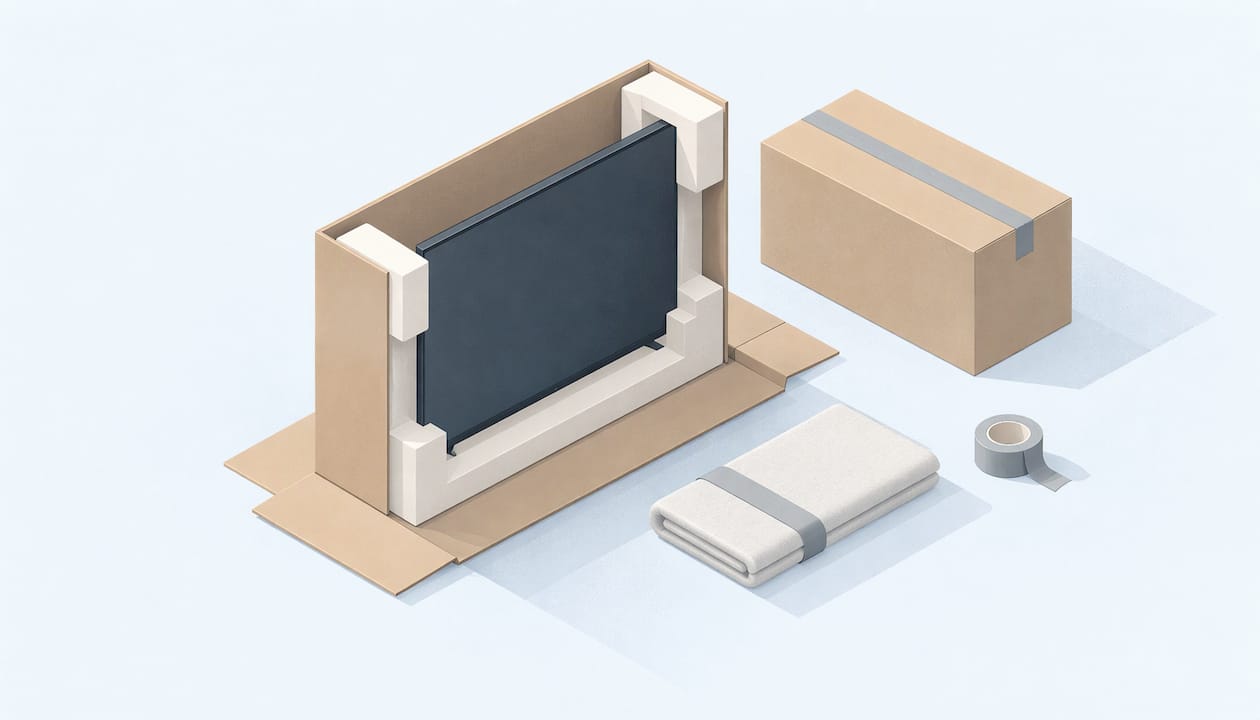
Store a TV upright, wrapped and boxed, in a dry space that never gets near freezing or baking heat, and let it sit at room temperature before you plug it in again. Those four habits prevent most of the damage people find when they pull a TV out of storage: cracked panels, warped screens, dead pixels and moisture trouble. If you are packing a TV for a move, a renovation or a summer away, the steps below show how to do each one. They also show why a climate-controlled unit with a drive-up door is easier on a TV than a garage or shed.
TL;DR
- Keep the TV vertical at every stage: in the car, on the dolly and in the unit. Manufacturers and shippers warn against laying a flat-screen on its side or back.
- Protect the screen with a soft layer, foam corners and a snug box, then fill the gaps so nothing shifts.
- Avoid freezing, big temperature swings and humidity. A climate-controlled unit takes those risks off the table.
- After storage, let the TV warm up to room temperature, ideally for a full day, before you power it on.
- Stand it on a pallet or sturdy platform, never directly on the concrete, and never stack anything against the screen.
Table of Contents
- Why TVs need more care than other boxes
- Step 1: Gather what you need
- Step 2: Prepare the TV itself
- Step 3: Wrap and box it
- Step 4: Transport it upright
- Step 5: Choose the right place to store it
- Step 6: Position it inside the unit
- Step 7: Bring it back to life
- Storing other electronics alongside a TV
- Picking a unit size for a TV
- Where to store a TV: a quick comparison
- A TV storage unit at Inline Storage
- Our view on storing a TV
- FAQ
- Sources
Why TVs need more care than other boxes
A modern flat-screen is a thin sandwich of glass, light-emitting layers and delicate electronics. It is built to hang on a wall or stand on a base, so it carries its weight vertically. Most of the damage that happens in storage comes from three things: pressure on the panel, moisture, and temperature.

ViewSonic's support team explains that placing a display horizontally can stress structural components, cause uneven weight distribution and lead to cracks or warping over time. The same page notes that damage from improper handling is not covered under warranty. That alone is reason enough to get the position right.
Moisture and temperature are the quieter threats. Heat and cold both stress the panel, but humidity is the one that works slowly. As Engadget points out, humidity can corrode contacts and solder joints and create condensation inside devices. You will not see it while the TV is boxed, but you may see it the first time you turn the set on.
Step 1: Gather what you need
Get your materials ready before you touch the TV, so you are not improvising with a bath towel and duct tape halfway through.
- The original box and foam inserts, if you still have them. If not, a TV box or an adjustable telescoping box made for flat-screens.
- A soft, lint-free layer for the screen, such as a microfiber cloth or a foam sleeve.
- Foam corner protectors.
- Bubble wrap or moving blankets for the outside.
- Zip ties or twist ties for cables, and small bags and a marker for screws.
- Packing tape, used on the box only, never on the screen or bezel.
- A wooden pallet, shelf platform or sturdy table to stand the box on in the unit.
UPS says the retail box or a box designed to accommodate televisions is the best option, with cushioning lining the bottom and foam edge protectors securing the TV. A generic cardboard box that is too big lets the TV rock, and a box that is too small presses on the screen.
Step 2: Prepare the TV itself
Photograph the back panel and unplug everything
Before you pull a single cable, take a photo of the back of the TV with every port and connection visible. In a year you will not remember which HDMI input was the game console and which was the soundbar. Then unplug the power cord, the HDMI cables, the antenna or cable line and any adapters.
Bundle each cable with a zip tie. Put the remote, small cables and batteries (removed from the remote) in a labeled bag. Tape that bag to the back of the TV or place it inside the box, so the pieces stay together.
Clean it and remove the stand or mount
Wipe the screen with a dry microfiber cloth. Avoid spraying cleaner directly on the panel. Dust and fingerprints trapped under padding for months can leave marks, and a clean set is easier to inspect when it comes out.
Take off the stand legs or the wall-mount bracket. Keep the screws in a labeled bag with the hardware. A TV with its base still attached is awkward to box and puts stress on the bottom edge. If you are unsure how the stand detaches, the manual is usually online by model number.
Step 3: Wrap and box it
- Cover the screen first. Lay a microfiber cloth, foam sheet or foam sleeve over the entire panel. This is the layer that touches the glass, so it must be clean and soft. Skip anything with adhesive.
- Add foam corner protectors. The corners and edges take the hits during carrying, so cover all four.
- Wrap the whole set. Use bubble wrap or a moving blanket around the outside and secure it with tape on the wrap only.
- Line the bottom of the box. Cushioning on the floor of the box keeps the bottom edge from absorbing every bump.
- Slide the TV in upright. Put it in vertically, with two people for anything above 40 inches or so.
- Fill the gaps. Use soft padding such as crumpled paper, foam or towels so the TV cannot slide or tilt. Close the box and tape the seams.
- Label it. Write the TV model, the screen size, "FRAGILE" and "THIS SIDE UP" with arrows on at least two sides.
For very large sets, some movers recommend double-boxing and strapping the TV upright to a pallet. If your TV is over 50 inches and you have no original box, a purpose-built TV carton is worth buying, because it is cheaper than a new panel.
Step 4: Transport it upright
Car, SUV, van or truck, the rule is the same: the TV rides on its bottom edge, leaned against a padded wall or secured with straps. UPS states that keeping a television upright during every step is crucial, because TVs aren't designed to be laid on their sides. Do not slide it flat on the back seat or under other boxes.
A few practical points:
- Pad the vehicle wall or load the TV against something flat and stable.
- Do not put heavy boxes against the screen side.
- Carry it with one hand under the bottom edge and one on the side, never by the screen.
- Park close to your unit. This is where drive-up access saves effort, because you can back up to the door and wheel the box in without carrying it down a hallway or through elevators.
Step 5: Choose the right place to store it
The place matters as much as the packing. A perfectly wrapped TV in the wrong environment can still fail.
Why a garage or shed is a risky spot
Engadget reports that most US garages lack climate control and often run 10 to 18 degrees hotter than the outside temperature. The same article advises against storing electronics in a garage unless it is climate-controlled or stays within the manufacturer's recommended storage conditions. In South Texas, summer heat in an attic, shed or metal building adds up quickly, and humidity is a constant companion.
What temperature range is safe?
There is no single number for every TV. Each manufacturer publishes a storage range in the manual, usually much wider than the operating range. Look for "storage temperature" and "storage humidity" in the specifications. Engadget notes that most TVs can handle a cold snap as long as the temperature stays within the manufacturer's storage range and the set stays dry. The trouble comes from freezing conditions and rapid, large temperature swings.
The practical goal is simple: keep the TV in a space that stays moderate and steady all year, with low humidity. That is exactly what climate control is for. If you want to know how humidity is managed in a unit, our guide on climate-controlled storage covers what to look at before you pay extra, and what needs climate-controlled storage in South Texas lists the items that benefit most. A TV is on that list.
Plasma and older sets
If you still own a plasma, check the manual closely. Plasma panels tend to have narrower storage limits than LED sets, and altitude can matter too. Treat a plasma as the most delicate TV you own and give it the most stable environment you can.
Step 6: Position it inside the unit
How you place the box is the last piece of the puzzle.
- Upright, always. Stand the box on its bottom edge with the arrows pointing up. Never lay it on its back or side, even "just for now."
- Off the floor. Set it on a wooden pallet, a sturdy table or a shelf platform, not directly on the concrete. Concrete floors can wick moisture, and a short lift protects against it.
- Against a wall, not in the aisle. Lean it gently on a solid wall or against furniture that is padded and stable, so it cannot tip.
- Nothing on top, nothing against the screen. Do not stack boxes on it or lean mattresses, frames or mirrors against the face.
- Keep it clear of other fragile loads. Leave a little air around the box. A tight, airy layout also helps with humidity, and our guide to packing a storage unit for drive-up access shows how to lay out a unit so you can reach what you need.
If you want to avoid mold and musty smells on everything else you store near the TV, the steps in how to prevent mold in storage apply to the whole unit.
Step 7: Bring it back to life
This is the step people skip, and it is where condensation damage happens. If the TV spent time somewhere cold, bringing it into a warm room can cause moisture to form on and inside the components.
Engadget advises that you never bring a chilly TV inside, plug it in and turn it on right away. Let it return to room temperature so any interior moisture can evaporate. For equipment that has been very cold, the ASHRAE technical committee guidance is to allow at least 24 hours of acclimation while still packaged. It explains that condensate can bridge circuit traces on boards, so equipment should not be connected to power until acclimation is complete.
A simple routine:
- Bring the boxed TV indoors and leave it closed for a full day if it was in the cold.
- Unbox it, inspect the screen and the corners, and check the stand hardware.
- Reattach the stand or mount, then reconnect cables using your back-panel photo.
- Power it on and run a quick check for dead pixels, lines or color patches.
Storing other electronics alongside a TV
Most people storing a TV also have a soundbar, game console, laptop, speakers or a monitor. The same logic applies to all of them.
- Remove batteries from remotes, controllers and devices so they cannot leak.
- Keep original boxes when you can. Foam inserts were designed for the device.
- Wrap cables separately and label them, or keep each cable with its device.
- Use sealed bins for small electronics and add a desiccant packet. Engadget notes that a sealed desiccant is helpful in humid regions, whether hot or cold.
- Store them high. Put electronics on shelves or on top of sturdy furniture, not on the floor.
- Keep them cool and dry. Climate control is the most dependable way to do both in a long South Texas summer.
If you are also storing large appliances, see our appliance storage guide and the walkthrough on how to store a refrigerator.
Picking a unit size for a TV
A single TV does not need much room, but it does need space to stand upright with padding around it. A flat-screen box is tall and thin, so it fits best against a wall rather than in the middle of the floor.
| What you are storing | Unit size to look at |
|---|---|
| One TV and a few small boxes | Storage lockers and 5x5 units |
| TV, a media stand and a few boxes | 5x10 units |
| Living room contents, including the TV | 10x10 and 10x15 units |
| A whole house or apartment | 10x20 and 10x30 units |
These are the size ranges we rent. Think about the item you will need to reach first. Put the TV in the back, upright and padded, and keep your aisle clear so you can walk to it without moving other boxes.
Where to store a TV: a quick comparison
| Location | Temperature swings | Humidity risk | Fit for a TV |
|---|---|---|---|
| Garage or shed | High, often hotter than outdoors | Moderate to high | Poor for long stays |
| Attic | Very high | Variable | Not suitable |
| Spare room or closet | Low | Low | Good |
| Climate-controlled storage unit | Low and steady | Managed | Strong choice when you lack spare room |
When a spare room is not available, which is common during a move or a renovation, a climate-controlled unit is the closest match to indoor conditions.
A TV storage unit at Inline Storage
If your TV needs a few weeks or a few months away from home, we have what that takes in South San Antonio. We offer climate-controlled storage, a range of unit sizes from lockers and 5x5 units up to 10x30, and month-to-month leases. The facility has gated access and video surveillance, and drive-up access lets you pull right up to the door.
With Touchless Rentals™ you can rent a unit online with minimal physical interaction, or use our 24-hour kiosk. Browse our self-storage units to pick a size, or look at the 10x10 units if the TV is part of a larger room of furniture.

If you also want to know how secure a facility is before you move anything in, our renter checklist on whether storage units are safe shows what to look at.
Our view on storing a TV
We think a TV is one of the easiest things to store well and one of the easiest to ruin.
The damage almost never comes from one dramatic event. It comes from small choices: a set laid flat on the back seat, a box leaned against a hot garage wall, a screen turned on an hour after it came out of the cold. Each is avoidable.
That is why we offer climate-controlled units and drive-up access. Steady conditions and a short, straight path from your vehicle to the door fit what a TV needs: upright, padded and moved as little as possible.
Our units come in sizes from lockers to 10x30, so you can match the space to what you are storing instead of paying for room you will not use. Month-to-month leases mean you can leave the TV for the length of a renovation and no longer.
Pack it upright, keep it dry, let it warm up. Do those three things and your TV will come out looking like it went in.
Ian
FAQ
Is it okay to lay a flat-screen TV down?
No. Flat-screens are designed to carry their weight vertically. ViewSonic's support team says that laying a display flat can crack or warp the panel and that the damage may not be covered by warranty. Keep the TV upright in the car, on the dolly and in the unit.
Is it okay to store a TV on its side?
No, a side position puts the same uneven load on the panel and frame. Stand the TV on its bottom edge, in a box that fits it, with nothing stacked against the screen. If you do not have the original box, use a box made for flat-screen TVs.
Is it okay to leave a TV in a cold garage?
It depends on how cold, how steady and how dry. Engadget notes that most TVs tolerate cold within the manufacturer's storage range, but freezing and sudden swings cause problems. Check the storage range in your manual. A climate-controlled unit avoids the question, and you should let the TV warm to room temperature before you plug it in.
How long should a TV sit before I turn it on after storage?
If it was stored somewhere cold, give it about a full day. The ASHRAE technical committee recommends at least 24 hours of acclimation for equipment moving from very cold to warm conditions. If it was kept at a steady room-like temperature, a shorter wait is reasonable, but do not plug it in the moment you unbox it.
Should I store a TV with the stand attached?
Remove the stand or mount bracket before boxing the TV. The set fits more safely in its box, and the legs will not press on the bottom edge. Keep the screws and hardware in a labeled bag taped to the box.
Sources
- How To Ship a TV | UPS
- Can I lay my display face up? | ViewSonic Customer Care
- Here's Why You Should Think Twice Before Storing Your Electronics in a Garage | Engadget
- Cold Weather Shipping Acclimation and Best Practices | ASHRAE